
MacOS 14 (Sonoma)
If you’re starting TeamViewer on your Mac running macOS 14.0 (Sonoma) or higher for the first time, you will be prompted with the following dialog:
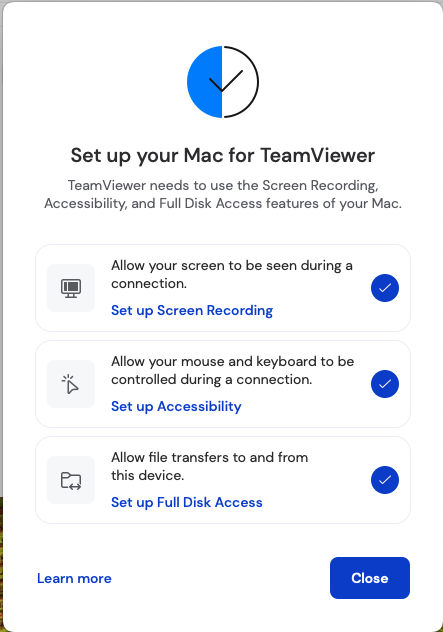

You can also open this dialog by clicking on Help –> Check system access.
By default, all permissions are set to Denied.
To allow the access, select each Full Disk Access, Accessibility and Screen Recording, and enable the toggle next to TeamViewer to grant it access. You might be prompted to enter the credentials of an administrator account to continue:

Note: If you are seeing the entry TeamViewer_Desktop in your list, make sure to enable this toggle as well.
If you are not presented with the dialog
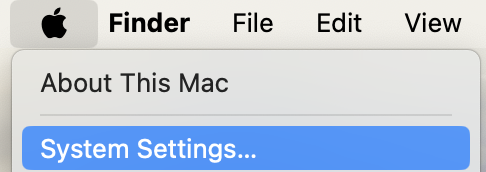
Open the Mac menu and select System Settings…
Select the Privacy & Security option on the left side and then choose each of the following sections within the list (Full Disk Access, Accessibility, Screen Recording):
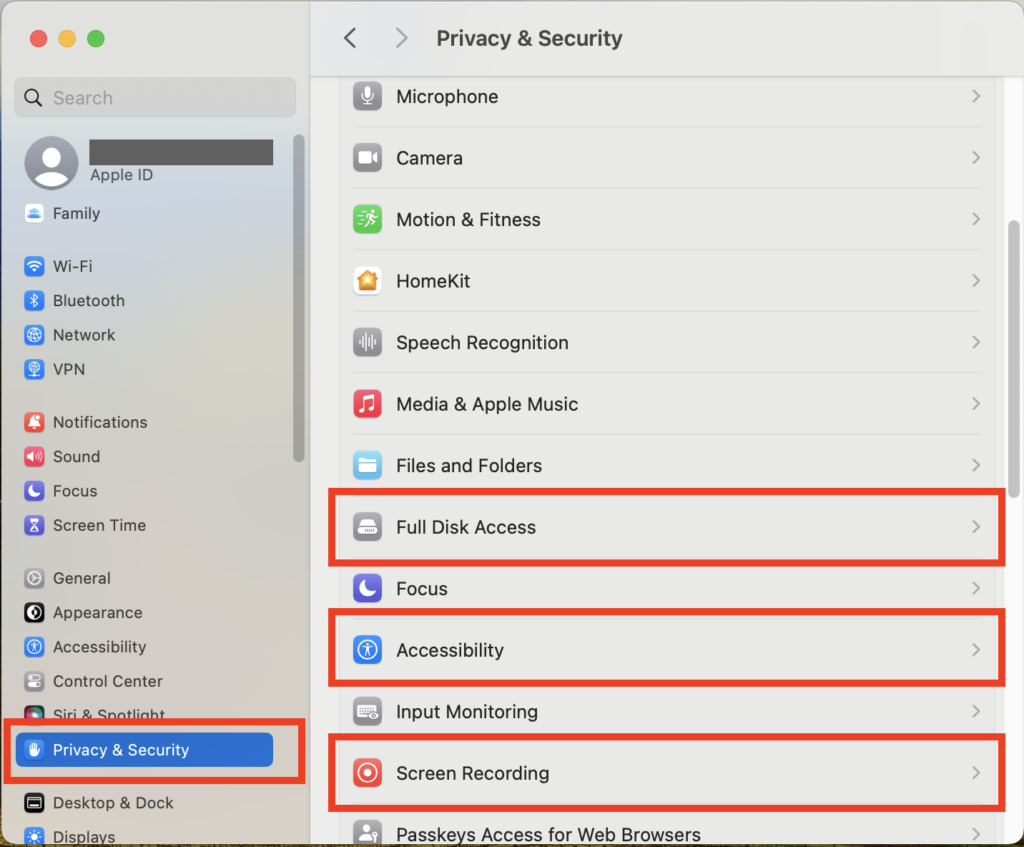
When selecting Full Disk Access, Accessibility or Screen Recording, you might be prompted to enter the credentials of an administrator account to continue.
Put a check next to TeamViewer to grant it access:
Note: If you are seeing the entry TeamViewer_Desktop in your list, make sure to check this box as well.
If TeamViewer does not appear for any of the Privacy & Security options, click the small button with the plus symbol underneath the panel. This opens a Finder window. Then navigate to your Applications folder, select TeamViewer, and click Open.
Once you have done it for every category, you can close the Security & Privacy window. The next time you want to receive an incoming connection with TeamViewer, the person connecting to your Mac will be able to see and control your device.
The permission status can be reviewed under Help -> Check system access at any time.
MacOS 10.14 (Mojave)
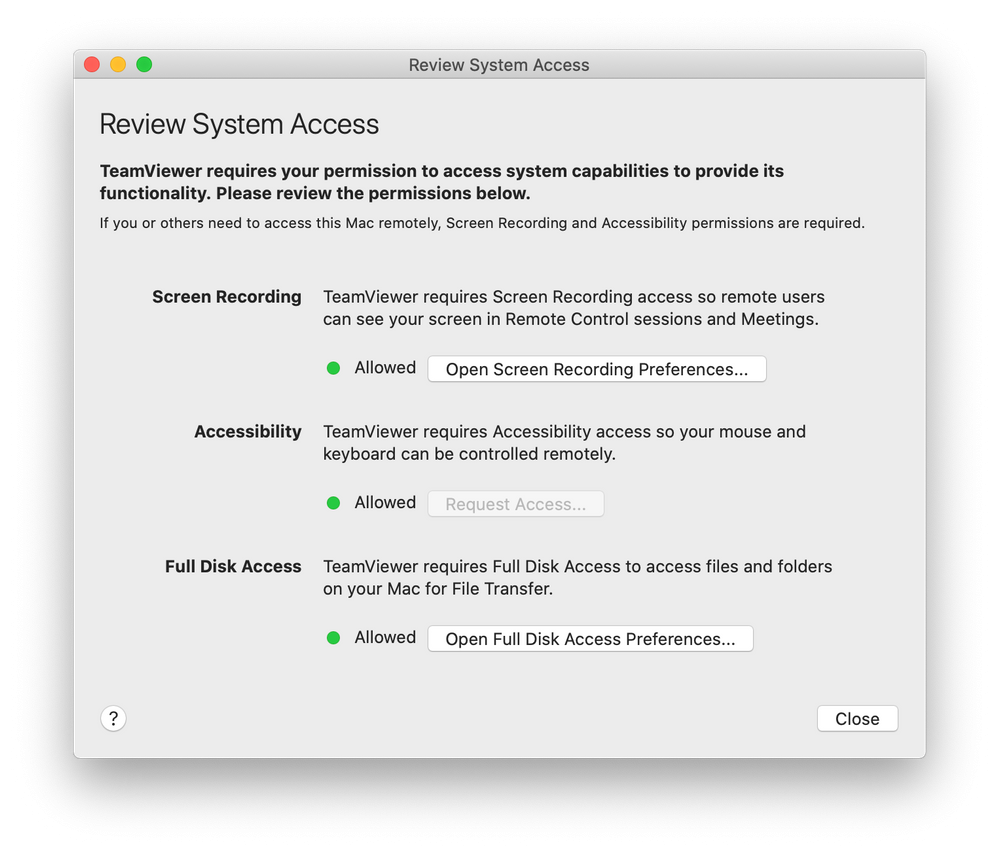
If you’re starting TeamViewer on your Mac running macOS 10.14 (Mojave) or higher for the first time, you will be prompted with the following dialog:
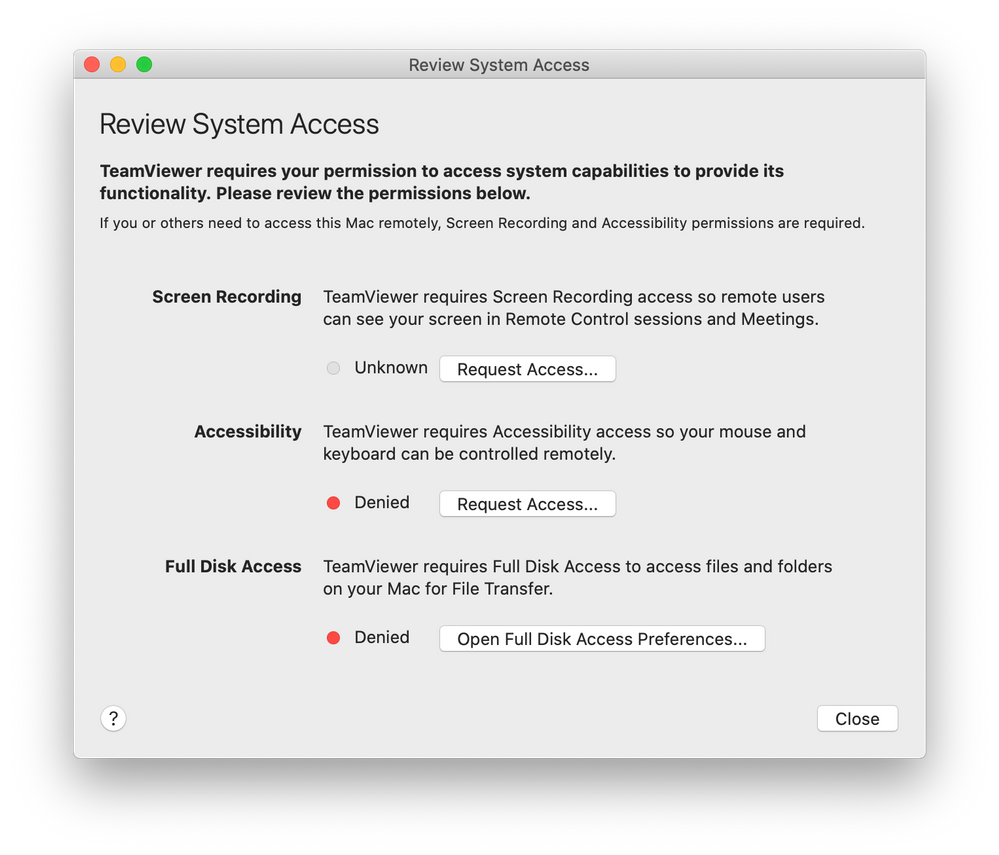
You can also open this dialog by clicking on Help –> Check system access.
By default, all permissions are set to Denied.
To allow the access, click the buttons shown in the dialog. Eg. click to allow Accessibility, click on Request Access… – then confirm by clicking on Open System Preferences
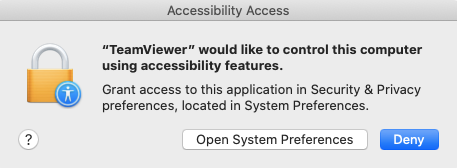
which will bring you to the Accessibility section of the Privacy panel, inside the Security & Privacy preferences:
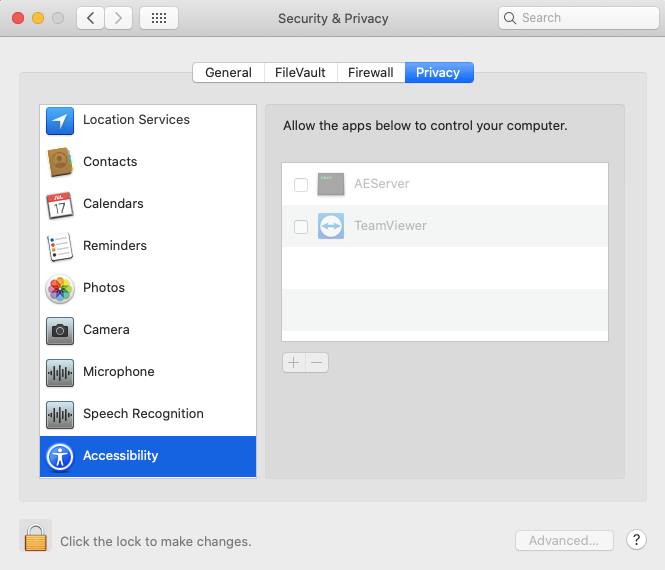
For the Accessibility access, you will need to click the padlock icon in the lower-left corner to make changes. You might be prompted to enter the credentials of an administrator account to continue.
Put a check next to TeamViewer to grant it access:
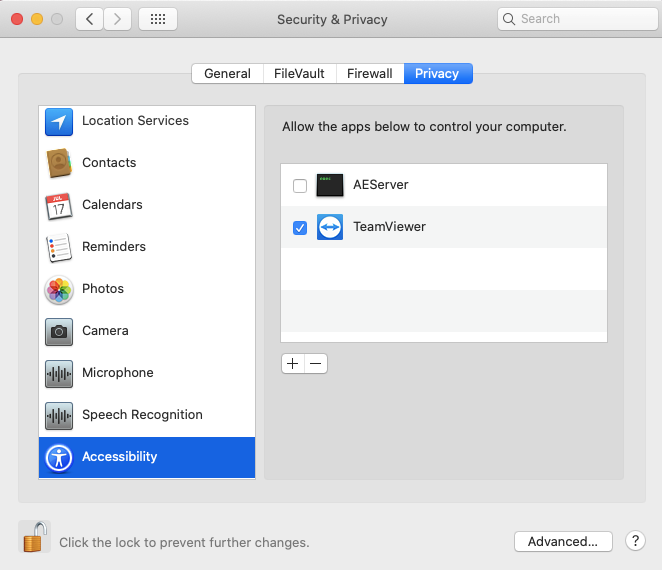
Note: If you are seeing the entry TeamViewer_Desktop in your list, make sure to check this box as well.
Repeat the same for Full Disk Access and Screen Recording. Those are required to control your Mac.
Click again on the padlock in the lower-left corner to prevent further changes.
Once you have done it for every category, you can close the Security & Privacy window. The next time you want to receive an incoming connection with TeamViewer, the person connecting to your Mac will be able to see and control your device.
The permission status can be reviewed under Help -> Check system access at any time.
If you are not presented with the dialog
1) Go to System Preferences, then Security & Privacy, then Privacy, then Screen Recording, Full Disk Access, and Accessibility.
2) Only for Accessibility: Click the lock icon to make changes.
3) If TeamViewer is already shown in the panel, then put a check next to it to enable it.
4) If not, click the small button with the plus symbol underneath the panel. This opens a Finder window.
5) Navigate to your Applications folder, select TeamViewer, and click Open.
6) Now you should have TeamViewer listed in the panel and enabled.